Scheduling Conference Rooms in George Tower
All George Tower conference rooms are configured as Microsoft 365 room resources. When a room is added to a meeting invitation, Outlook can check the room's availability and help prevent scheduling conflicts.
Creating a Meeting and Reserving a Room
- Open Outlook and select New Event or New Meeting.
- Enter the meeting title, attendees, date, and time.
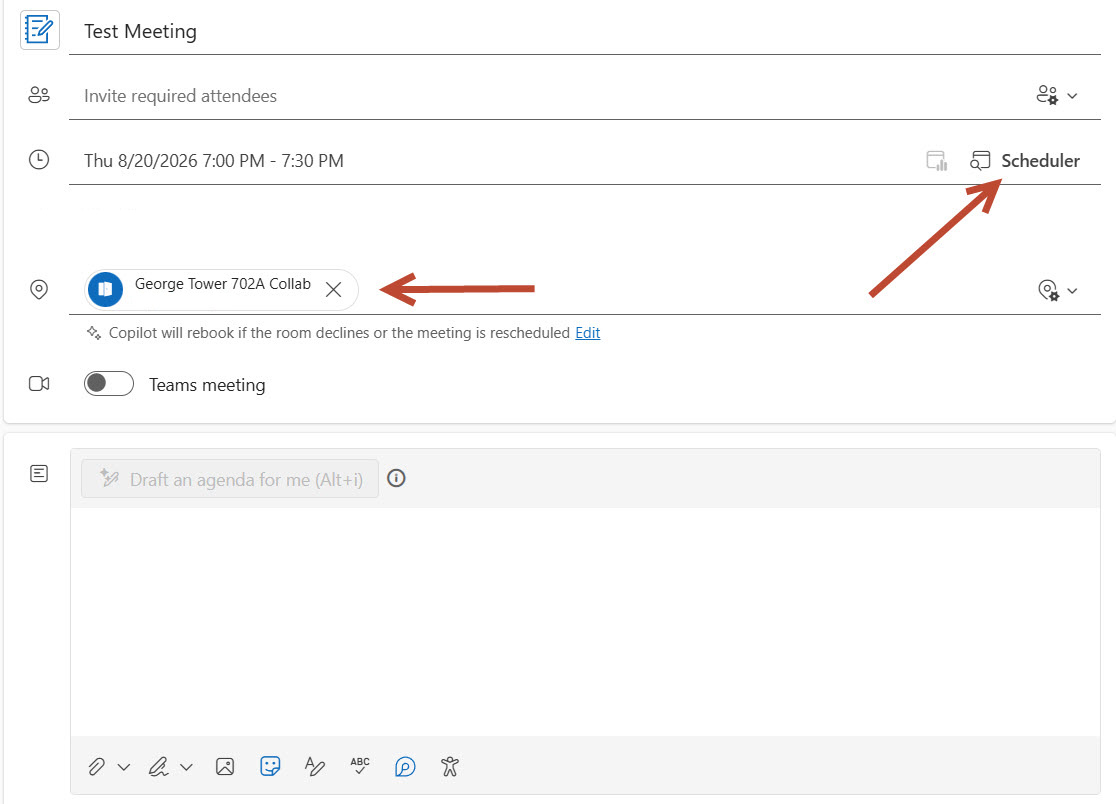
- In the Location field, select Browse with Room Finder or Browse All Rooms.
- Search for George Tower to display available conference rooms. You may need to stat typing the room number.
- Select the desired room from the list.
- The room will be added to the meeting as a resource and Outlook will be able to check its availability.
Checking Room Availability
Before sending the meeting invitation, use the Scheduling Assistant to verify that the room is available.
- After adding the room, click Scheduling Assistant on the Outlook toolbar.
- The selected conference room will appear alongside the meeting attendees.
- Review the availability grid:
White/Open = Available
Busy/Colored = Already reserved - If the room shows as busy during your desired meeting time, select a different time or choose another room.
- Once you find a time when both attendees and the room are available, return to the meeting invitation and send the request.
Scheduling Recurring Meetings
For weekly meetings, committee meetings, classes, or other events that occur throughout the semester:
- Create the meeting and select Recurrence.
- Configure the recurrence pattern (for example, every Tuesday at 2:00 PM).
- Set the end date for the series.
- Open Scheduling Assistant and review the room's availability across the recurring series.
- Verify that the room remains available throughout the semester before sending the invitation.
Because recurring meetings can span many months, reviewing the schedule beforehand can help identify conflicts with existing reservations.
What Happens If There Is a Conflict
George Tower conference rooms automatically process meeting requests through Microsoft 365.
- If a room is already reserved, it will appear as Busy in Scheduling Assistant.
- Depending on the room's configuration, the room may automatically decline conflicting meeting requests.
- For recurring meetings, individual occurrences or the entire series may be declined if conflicts exist.
- Using Scheduling Assistant before sending the invitation is the best way to identify and avoid scheduling conflicts.
Reservations that involve non-student minors
Any request for space that involves non-student minors requires written pre-approval, or exemption from Youth Programs Compliance prior to the event. Register and Learn more here: https://youthprograms.gatech.edu and https://youthprograms.gatech.edu/youth-programs-registration-form-instructions.
Please reach out to ISyE Reservations for additional information and assistance.
Best Practice
Always select a room using Room Finder or Browse All Rooms and verify availability with Scheduling Assistant before sending your invitation. This is especially important for recurring meetings that span multiple weeks or semesters.
Connect Your Laptop to the Room Display
Before your meeting, install the required apps below for your laptop type. Once installed, you'll be ready to share your screen on the room's display.
Connect from a MacBook
- Open GT Self Service. Look for the icon called "Georgia Tech" in your Dock or Applications folder and click it to launch the app.
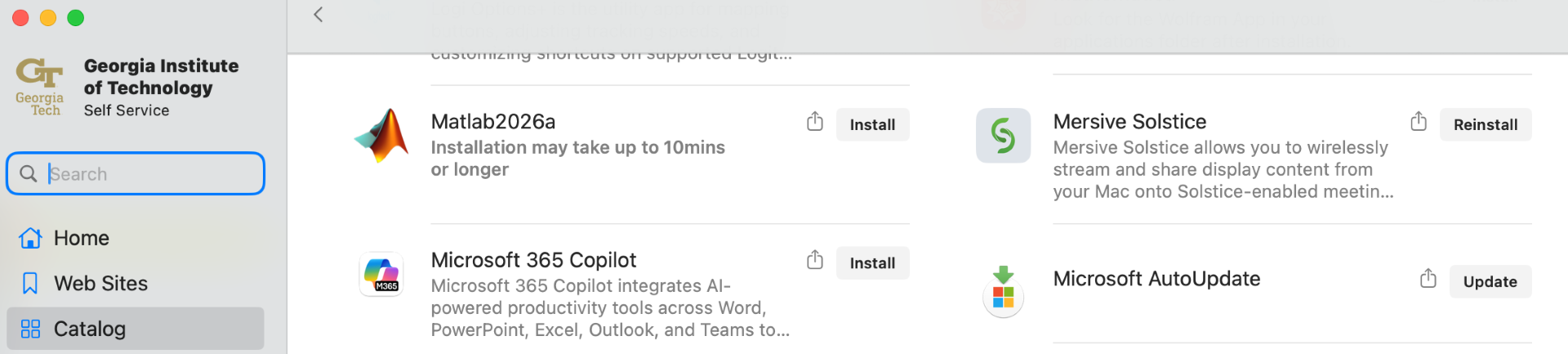
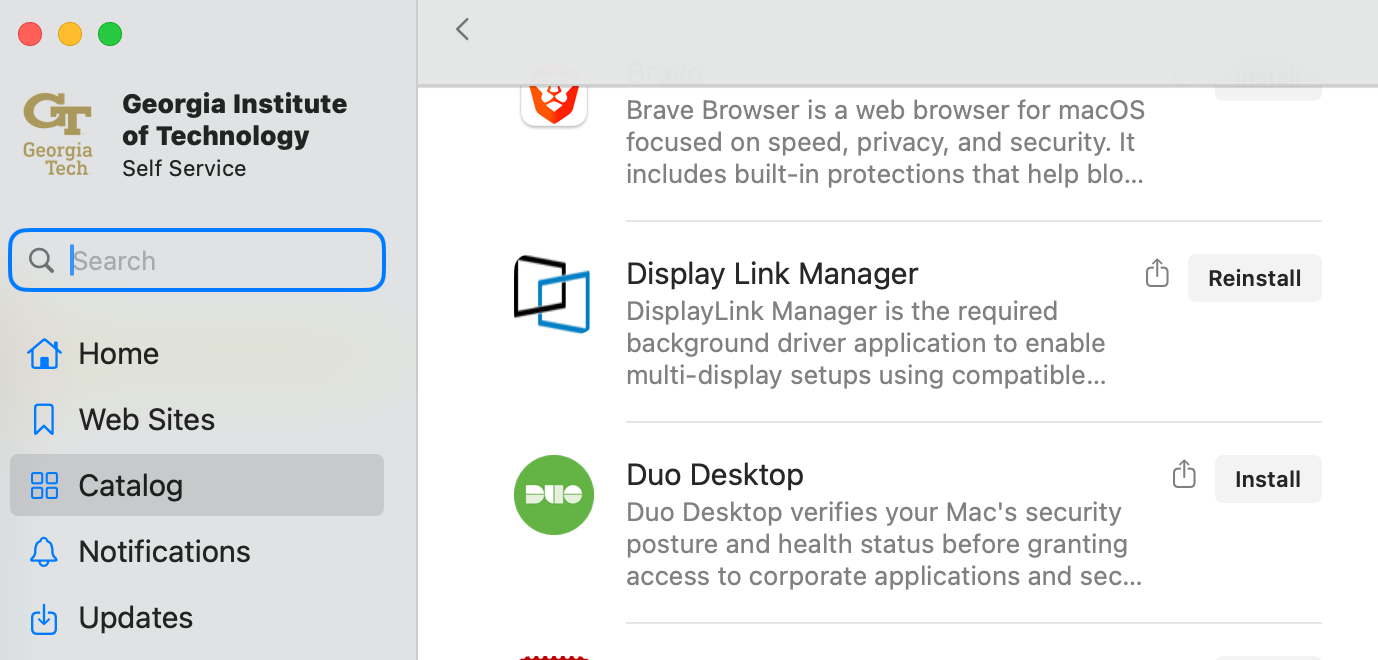
- Go to the Catalog. In Self Service, select "Catalog" from the left-hand menu, then choose "All" from the filter bar at the top so every available app is shown.
- Install Mersive Solstice. Find it in the catalog and click Install (or Reinstall if it's already listed). This app lets you wirelessly share your screen to the room display.
- Install Display Link Manager. Find it in the catalog and click Install (or Reinstall). This driver enables multi-display support for compatible room hardware.

Connect from a Windows PC
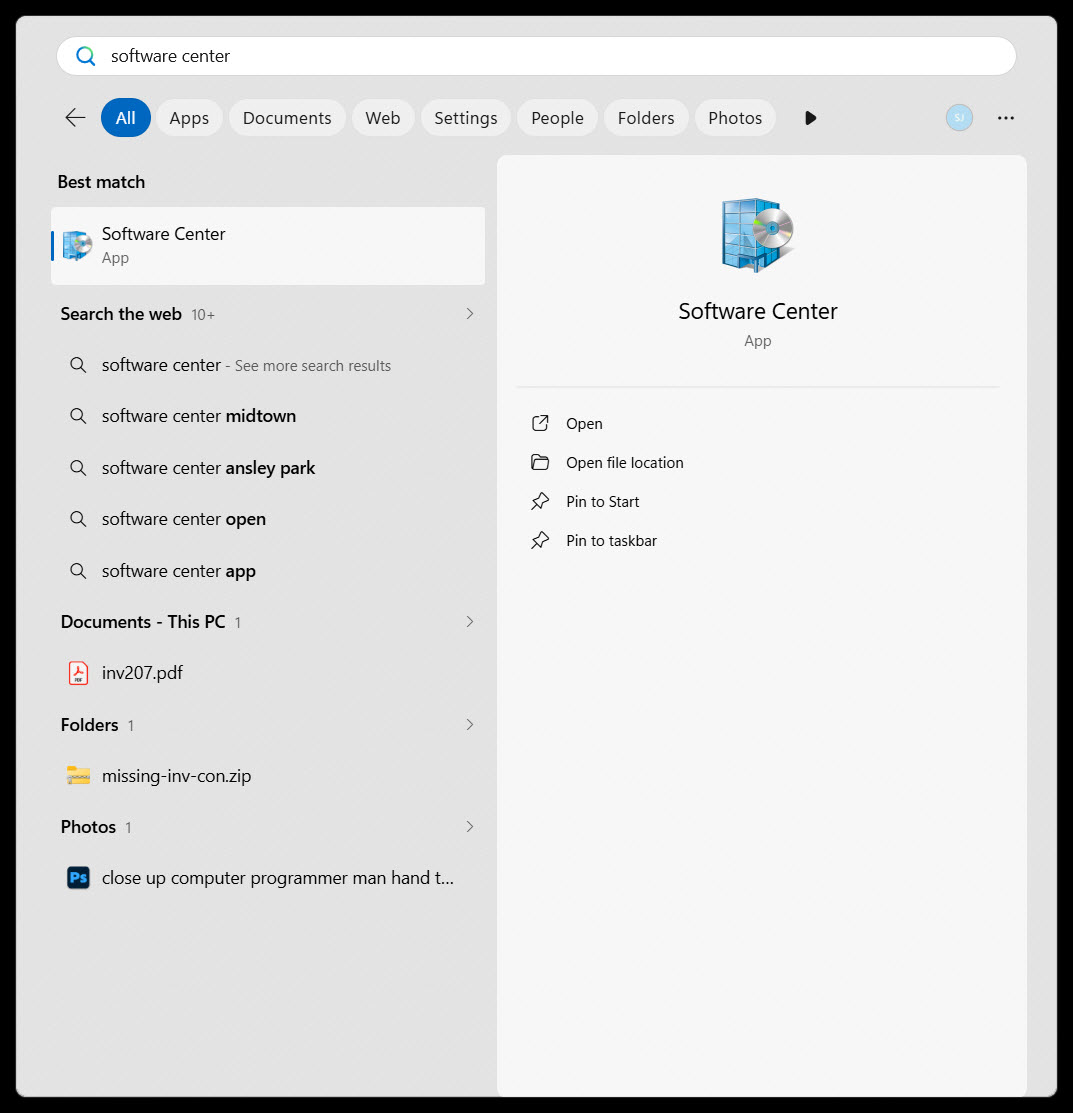
- Open the Start Search. Click the search icon in your taskbar and type "Software Center."
- Select the Software Center app from the results to open it.
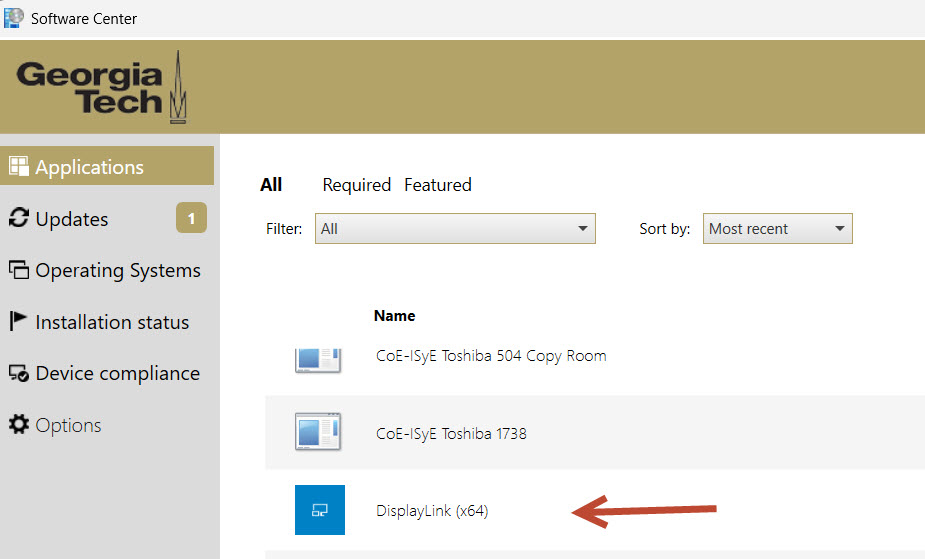
- Go to Applications. Once Software Center opens, make sure the Applications tab is selected so you can browse everything available.
- Install DisplayLink. Find "DisplayLink (x64)" in the list, click its name, then click Install.
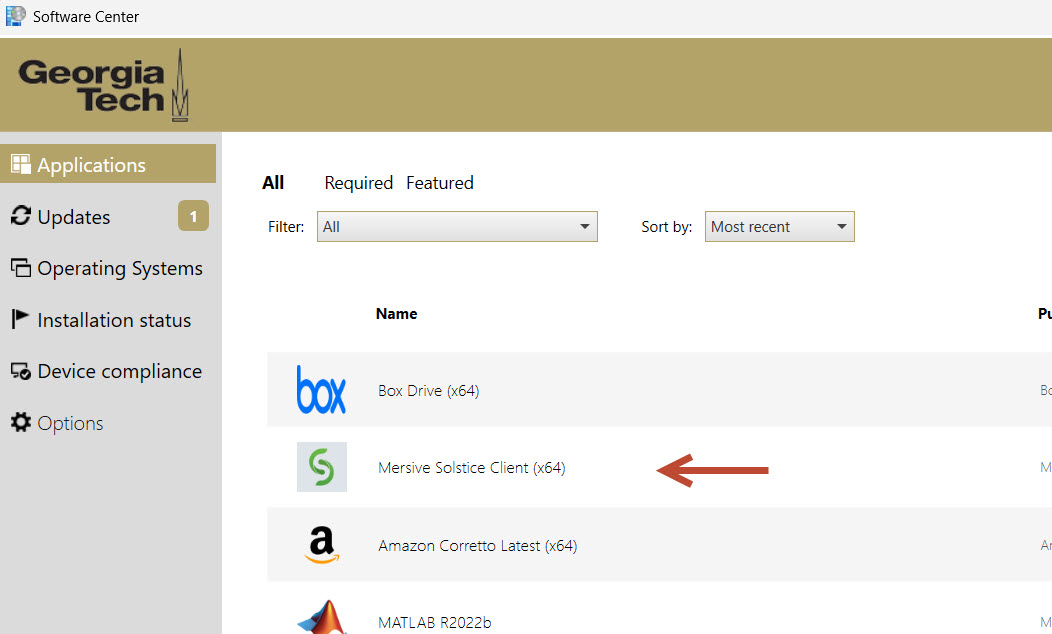
- Install Mersive Solstice Client. Find "Mersive Solstice Client (x64)" in the list, click its name, then click Install.